On this page
Agencies join in one of two ways. Start at List your agency.
- Claim an agency that is already listed. Search for it and choose Claim this agency.
- Apply if your agency is not listed: Apply to list your agency.
Both need you to be signed in (create a traveller account first if you do not have one). One account can manage one agency, so use a separate account for each agency.
What happens, step by step#
- Send your details. A short form creates a draft request.
- Add documents on your request page (your account page, Agency requests card). You upload them one at a time.
- Send it for review. You see "Sent. We will check your documents and call the agency, usually within a few working days." The timing is an estimate, not a guarantee.
- Staff verify by phone. They call the number on the agency's own website, not one typed in the form.
- Approval. The owner invitation goes to your agency's official email. You open the link and join.
- Activation. Staff verify the agency and set it to Active before your tours can be public.
The List your agency page#
Open List your agency. Anyone can read it; you do not need to be signed in.
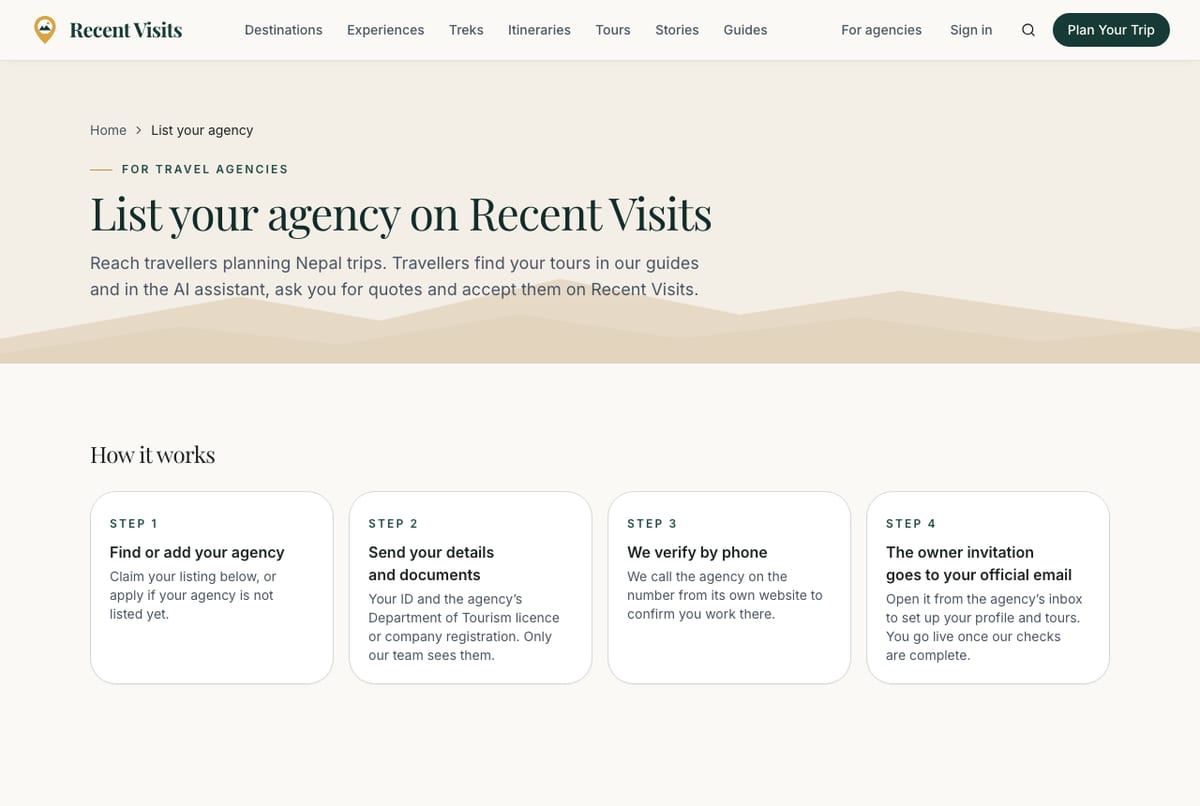
| Part | What it is |
|---|---|
| How it works | Four numbered cards: find or add your agency, send details and documents, we verify by phone, the owner invitation goes to your official email. |
| Is your agency already listed? | Agencies added from their own public websites. They are not partners and receive no quote requests until claimed and verified. |
| Search by agency name (box) and Search (button) | Text box, optional, up to 80 characters. Filters the claim list by name; the page reloads with ?q=. |
| Agency cards | Each shows the agency name, its website host and up to three destinations, and either Claim this agency (opens the claim form) or a Claim under review badge when someone already claimed it. |
| Empty states | "No unclaimed agency matches “…”" after a search, or "No unclaimed agencies right now". Both say "Apply below and we will add your agency." |
| Not listed? | The Apply to list your agency button. |
| Plans | The plans table. See Plans and fees. |
| Listing terms in brief | Seven bullet points: you must be authorised and hold a licence; how verification works; documents are seen only by staff and deleted 90 days after the decision; you publish your own tours and keep them accurate; travellers' contact details are shared when they accept your quote; your plan never buys ranking; a partner agreement is signed before going live. |
Before the form: sign in#
The claim and apply pages show one of these instead of the form when it cannot be used:
| You see | Why, and what to do |
|---|---|
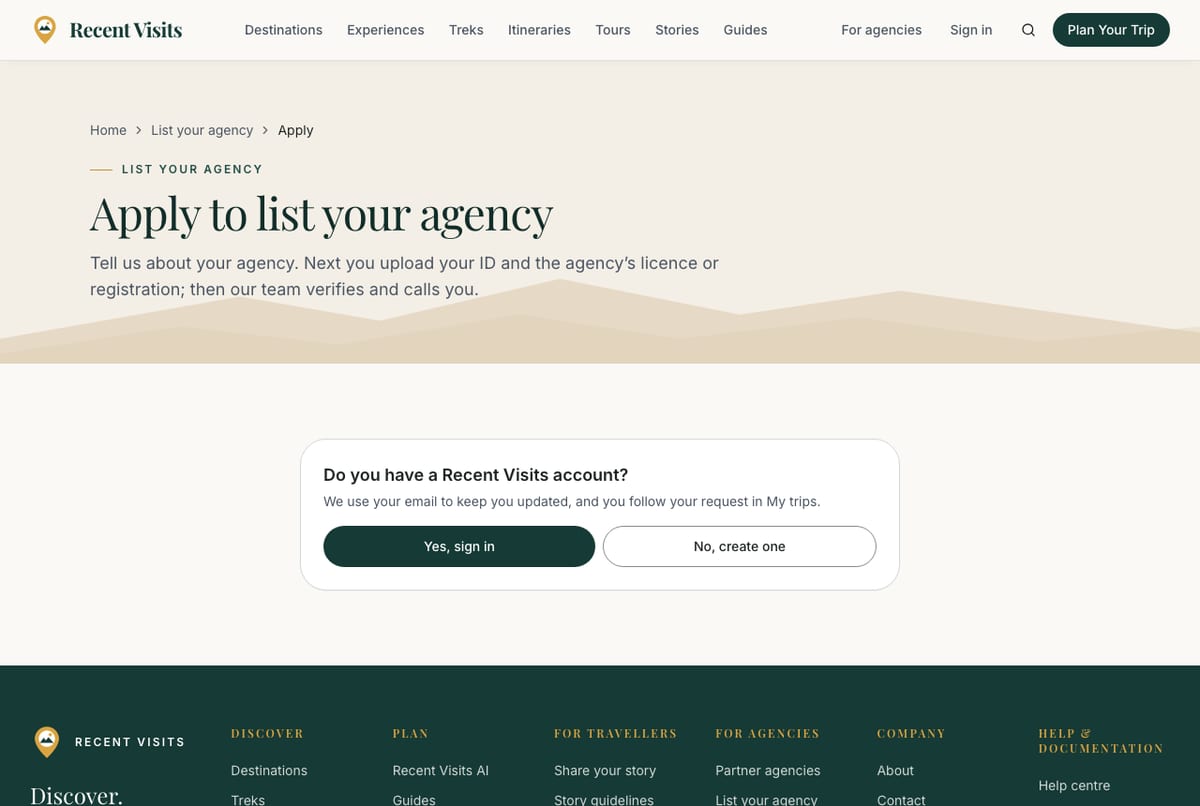
| "Do you have a Recent Visits account?" with Yes, sign in and No, create one | You are signed out. Choose one; you return to the same page afterwards. |
| "Your account already manages an agency on Recent Visits…" with Go to your partner portal | Your account is already on an agency team. Use another account for a different agency. |
| "You already have an open request. Open it to add documents, check its status or withdraw it." | You have a draft, submitted or needs-information request. Open it from the link. |
| "Someone has already claimed this agency and our team is checking it. If you work there and did not send it, contact us." | Claim page only. Use the Contact page. |
The form#
For an application (a new agency)#
The Your agency section only appears for applications. For a claim, the agency details come from the listing.
| Field or item | Type | Required? | Explanation | How to use it |
|---|---|---|---|---|
| Agency name | Text | Yes | Up to 160 characters, at least 2. Error: "Enter the agency name." | The agency's trading name. |
| Website | URL | No | Up to 300 characters. | Your agency website, starting with https://. |
| Official email | Yes | "The owner invitation goes to this address. Use one you can open." Error: "Enter the agency’s official email. The owner invitation is sent there." | An inbox the agency controls. The link I manage the agency myself: use <your email> fills in your sign-in email. | |
| Agency phone | Phone | Yes | Up to 40 characters. Error: "Enter the agency’s phone number." | The number staff call. It should match the number on your website. |
| Years operating | Number | No | Whole number from 0 to 100. | How long the agency has operated. |
| Office address | Text area | No | Up to 500 characters. | Street, city, country. |
| Destinations you operate in | Group of pill options | No | Published destinations, up to 20. Only shown when destinations exist. | Tick every place you run tours to. |
| Languages your guides speak | Group of pill options | No | The same language list as the profile. | Tick all that apply. |
| Link to some of your tours | URL | No | Hint: "A page on your website is fine." Up to 300 characters. | A page where staff can see your tours. |
Licence and registration (claims and applications)#
| Field or item | Type | Required? | Explanation | How to use it |
|---|---|---|---|---|
| Department of Tourism licence no. | Text | One of these two | Up to 80 characters. If both are empty: "Enter the Department of Tourism licence number or the company registration number." | Enter the number exactly as on the licence. |
| Company registration no. | Text | One of these two | Up to 80 characters. | Enter the number on the certificate. |
| PAN / VAT no. | Text | No ("Optional") | Up to 80 characters. | Add it to speed up checks. |
| TAAN / NATTA membership | Text | No ("Optional") | Up to 120 characters. | Name your association membership. |
About you#
| Field or item | Type | Required? | Explanation | How to use it |
|---|---|---|---|---|
| Your full name | Text | Yes | At least 2, up to 120 characters. Pre-filled with your account name. Error: "Enter your full name." | Your own name. |
| Your role at the agency | Text | Yes | Hint "For example: owner, director, manager". Up to 80 characters. Error: "Enter your role at the agency." | Your position. |
| Your phone | Phone | Yes | Up to 40 characters. Error: "Enter a phone number we can call." | A number staff can reach you on. |
| Anything we should know? | Text area | No ("Optional") | Up to 2,000 characters. | For a claim: say here if you cannot open the agency's email on file. |
| Checkbox: I agree to the listing terms and confirm I am authorised to act for this agency. | Checkbox | Yes | The link listing terms opens the terms in a new tab. Error: "Please accept the listing terms." | Tick it after reading the terms. |
For a claim, the "About you" section tells you: "You are claiming <agency>. We call the agency to confirm you work there. When we approve, the owner invitation goes to the agency’s email on file (<partly hidden email>); if you can’t open that inbox, say so below."
Buttons#
| Button | What it does |
|---|---|
| Continue to documents | Checks the form, creates a draft request and opens your request page at the documents step. It does not send anything to staff yet. If a field is wrong, the form stays filled in and each field shows its message under it, with "Check the highlighted fields and try again." above the button. |
Messages you may see#
| Message | Meaning |
|---|---|
| "Too many agency requests today" | You started more than five requests in a day. |
| "Your account already manages an agency. Sign in with another account to claim or list a different agency." | One account, one agency. |
| "You already have an open request. Finish or withdraw it first." | Only one open request per account. |
| "This agency is already managed on Recent Visits or cannot be claimed." | Someone already owns the listing. |
Your request page#
Open it from the Agency requests card on your account page (it appears once you have a request), or from the email links. The path is /account/agency-requests/<id>; only the person who made the request can open it.
| Part | What it shows |
|---|---|
| Heading and badges | The agency name, a status badge and "Claim of a listed agency" or "New agency application", then one sentence about the status (below). |
| Our question / Reason | A box with staff's message when the status is Needs information or Rejected. |
| Approved box | "Open the invitation in <email> and sign in with that address to manage the agency. Your agency goes live once our last checks are complete." The Agency invitations banner appears too. |
| Verification documents | The files you uploaded, with a Remove button on each while you can still edit, and the uploader. |
| Send for review / Send it again | Shows "Still needed: …" or "Everything needed is attached.", and the send button. |
| Withdraw this request | A text button at the bottom, while the request is open. |
Documents#
| Document | Required |
|---|---|
| Your ID (citizenship or passport) | Yes |
| Department of Tourism licence or company registration certificate | Yes (one of them) |
| PAN / VAT certificate, other supporting document | Optional |
| Field or item | Type | Required? | Explanation | How to use it |
|---|---|---|---|---|
| Document | Drop-down | Yes | Your ID (the default), Department of Tourism licence, Company registration certificate, PAN / VAT certificate, Other supporting document. | Choose what the file is before you upload it. |
| File | Drop zone / file picker | Yes | PDF, JPG, PNG or WebP, up to 3.5 MB. The real file type is checked, not the extension. Photos over about 1.5 MB are shrunk in your browser to fit; PDFs are not. | Drop the file or choose it. |
| Upload document | Button | n/a | Uploads one file. Success: "Document added." You can add up to 10 documents per request, 30 uploads a day. | Repeat for each document. |
| Remove | Button on each file | n/a | Deletes that file at once, without asking. Only while the request is a draft or needs information. | Use it to replace a wrong file. |
| Send for review | Button | n/a | Disabled until your ID and a licence or registration are attached. Sends the request to staff and emails you. | Press once everything is attached. |
| Send again | Button | n/a | The same, after staff asked for information. | Add what staff asked for first. |
| Withdraw this request | Button | n/a | Closes the request with the status Withdrawn. You can then start a new one. | Use it if you applied by mistake. |
Errors on files: "The file is empty."; "Files must be 3.5 MB or smaller. Photos are reduced automatically; scan PDFs at a lower resolution."; "Upload a PDF, JPG, PNG or WebP file."; "This file could not be read. Upload a clear PDF or photo of the document."; "You can attach up to 10 documents."; "Too many uploads today". Only Recent Visits staff can see your documents. They are deleted 90 days after the decision, and a draft you never send is deleted after 30 days. See the privacy policy.
Request statuses#
| Status | What the page says | What you can do |
|---|---|---|
| Draft (not submitted) | "Add your documents, then send the request for review." | Upload, remove, send, withdraw. |
| Submitted | "Our team is checking your documents and will call the agency. This usually takes a few working days." | Withdraw. |
| Needs information | "Our team has a question. Answer it by adding documents or details, then send the request again." | Upload, remove, Send again, withdraw. |
| Approved | "Approved. The owner invitation was sent to the agency’s official email." | Open the invitation. |
| Rejected | "This request was not approved." plus the reason. | Nothing; you may start a new request. |
| Withdrawn | "You withdrew this request." | Start a new request if you wish. |
You are emailed when staff receive it, when they need more, and when they approve or reject it. When it was approved, the email says the invitation went to the agency's official email, not to you.
Accepting the invitation#
The invitation link is valid for 14 days and works once. Open it (page title "Join <agency>"). It says you were invited to manage the agency as owner or manager and shows the address it was sent to.
| What you see | Meaning and what to do |
|---|---|
| "<email> already has a Recent Visits account." and Sign in as <email> | You are signed out and the address has an account. Sign in. |
| "Create your free account with <email>, then press Join." and Create your account | The address has no account yet. The email is filled in and locked. |
| Do you have a Recent Visits account? with two buttons | Shown when the page cannot tell whether the address has an account. |
| Red box "You are signed in as X, but this invitation is for Y." and Sign out and continue as Y | You are signed in with a different address. Sign out and continue. |
| Join <agency> button | You are signed in with the invited address. Press it. You become a member and land on the dashboard. |
| "This invitation is not valid" | The page then says why: "The link has expired. Ask the agency owner or the Recent Visits team to send a new one.", "This invitation has already been used." or "The link is incomplete or was revoked. Ask for a new invitation." |
If the Join step fails you may see "This invitation was sent to <email>. Sign in with that address to accept it." or "This account already belongs to another agency. Use a separate account for each agency."
You can also find a pending invitation on your account page and on the Partner portal page: an Agency invitations banner says "You’re invited to manage <agency> as <role>", with the link's expiry date and a Send the link again button (three times an hour; "We sent it recently. Please check your inbox and spam folder." if you press it too often). Joining always happens from the emailed link.
The Partner portal page#
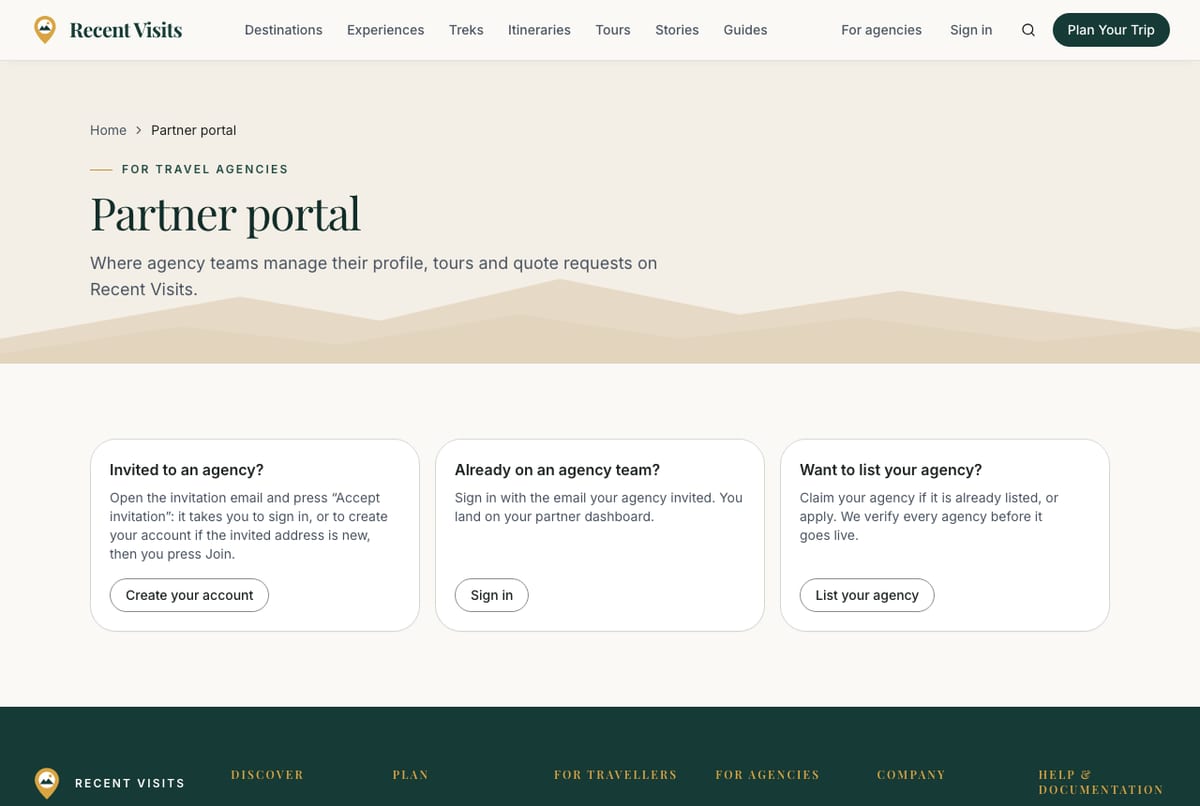
Partner portal (footer link) is for people who are not on an agency team yet. If you are already a member it sends you to your dashboard. Otherwise it shows three cards: Invited to an agency? (with Create your account when signed out), Already on an agency team? (with Sign in) and Want to list your agency? (with List your agency). When you are signed in without an agency it also says "You are signed in as <email>, which is not on an agency team yet." and shows any pending invitation.
Agency status#
| Status | What it means for you |
|---|---|
| Pending review | You can sign in and prepare draft tours, but cannot publish them, and your public profile is hidden. |
| Active | Your profile and published tours are public. |
| Suspended | Hidden from the public. The dashboard says to contact us. An agency whose owner asked to close it is also suspended until the closure date: see Closing your agency. |
Only staff change the status. You are emailed when your agency becomes active. Verified is a separate badge staff add after checking your identity and licence. Without it your tours are not offered by the AI assistant.
Plans and pricing#
The List your agency page shows plans. See Plans and fees for what the table says and what the portal does and does not enforce.
Demo listings#
During the beta, some agencies appear as Demo listings built from their public websites, so travellers can see how the site works. If you claim such a listing, staff review or pause the seeded tours once you are active. Demo listings cannot receive reviews, and no email is sent to a demo listing's public contact address.
Expected result#
After approval you open the invitation, press Join and land on your dashboard. Your agency stays Pending review until staff set it Active; you receive an email when it is live.
Troubleshooting#
| Symptom | Fix |
|---|---|
| Send for review is greyed out | Attach your ID and a licence or company registration. The page lists what is "Still needed". |
| I cannot open the agency's email | Tell staff in Anything we should know? (claims) or contact partners@recent-visit.com (opens in a new tab). |
| I cannot find my agency in the claim list | It may already be claimed, or not listed. Apply instead. |
| The invitation did not arrive | Check spam, then use Send the link again on your account page. See Troubleshooting. |
Last checked against the product:
Related articles
- Agency profile · Every field of the agency profile form, who can edit it, what happens when you save, what only Recent Visits staff control and how the profile appears on your public agency page.
- Team and account · Owners and managers, how to invite, resend, correct, revoke and remove people on the Team page, what every control and delivery status means, and what the account menu offers.
- Plans and fees · What the plans table on the List your agency page says, row by row, how commission and the claim welcome offer are described, and what the agency portal does and does not enforce.
- Troubleshooting for agencies · Fixes for common problems in the agency portal, with the exact messages: joining and documents, publishing, images, leads and quotes, invitations, access, conversations, reviews and closing the agency.
Still stuck? Contact us and tell us what you tried.