On this page
Recent Visits is a travel discovery site for Nepal. It brings together destination guides, treks, experiences, itineraries, traveller stories and tours offered by partner travel agencies, plus an AI assistant that helps you plan. Anyone can use it; you only need an account to keep conversations, read quotes, write stories or reviews, and save stories (see Accounts, sign-in and profile).
Find your way around#
The main menu sits at the top of every page. On a screen at least 1,280 pixels wide the section links are shown across the top; on anything narrower (phones, tablets, small laptops) they move into a menu drawer opened with the menu button.
The header#
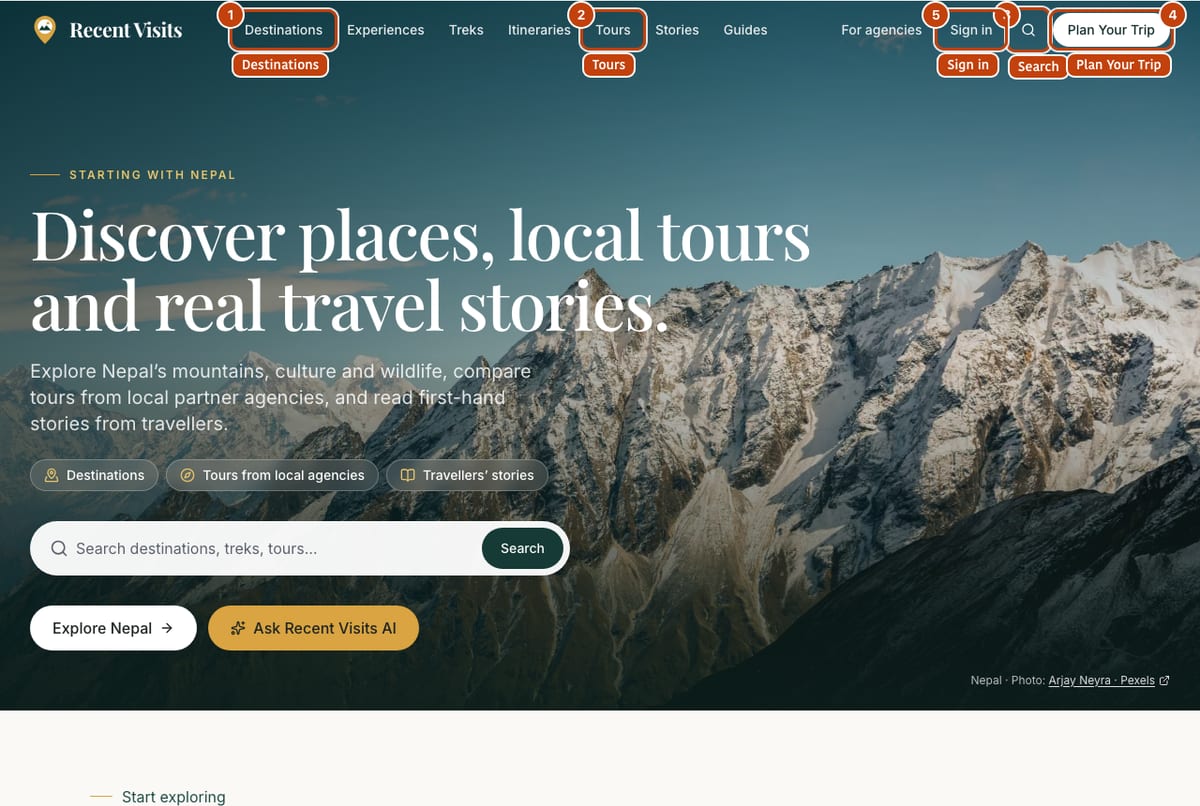
| Field or item | Type | Required? | Explanation | How to use it |
|---|---|---|---|---|
| Recent Visits logo | Link | No | Takes you to the homepage. | Select it from any page to start again. |
| Section links | Link row | No | Destinations, Experiences, Treks, Itineraries, Tours, Stories and Guides. Shown across the top from 1,280 px wide; the current section is highlighted. | Select one to open that section. Below 1,280 px use the menu drawer instead. |
| For agencies | Link | No | Opens the List your agency page. Shown from 1,280 px wide. Agency team members see Partner portal here instead. | Select it if you run a travel agency. |
| Sign in / My trips | Link | No | Shown from 768 px wide. Sign in opens the sign-in page; once you are signed in it reads My trips and opens your account page. A small dot appears when you have an agency invitation waiting. | Select it to sign in or to open your account. On a phone use the menu drawer. |
| Search (magnifier icon) | Link button | No | Opens the search page. Always shown. | Select it, then type. See Search. |
| Plan Your Trip | Button | No | Opens the four-step planning page. Shown from 640 px wide. | Select it for a guided start, or use the drawer on a phone. |
| Menu button (three lines) | Button | No | Opens the menu drawer. Shown below 1,280 px wide. | Select it; press Escape or select a link to close it. |
The menu drawer#
The drawer lists, from top to bottom:
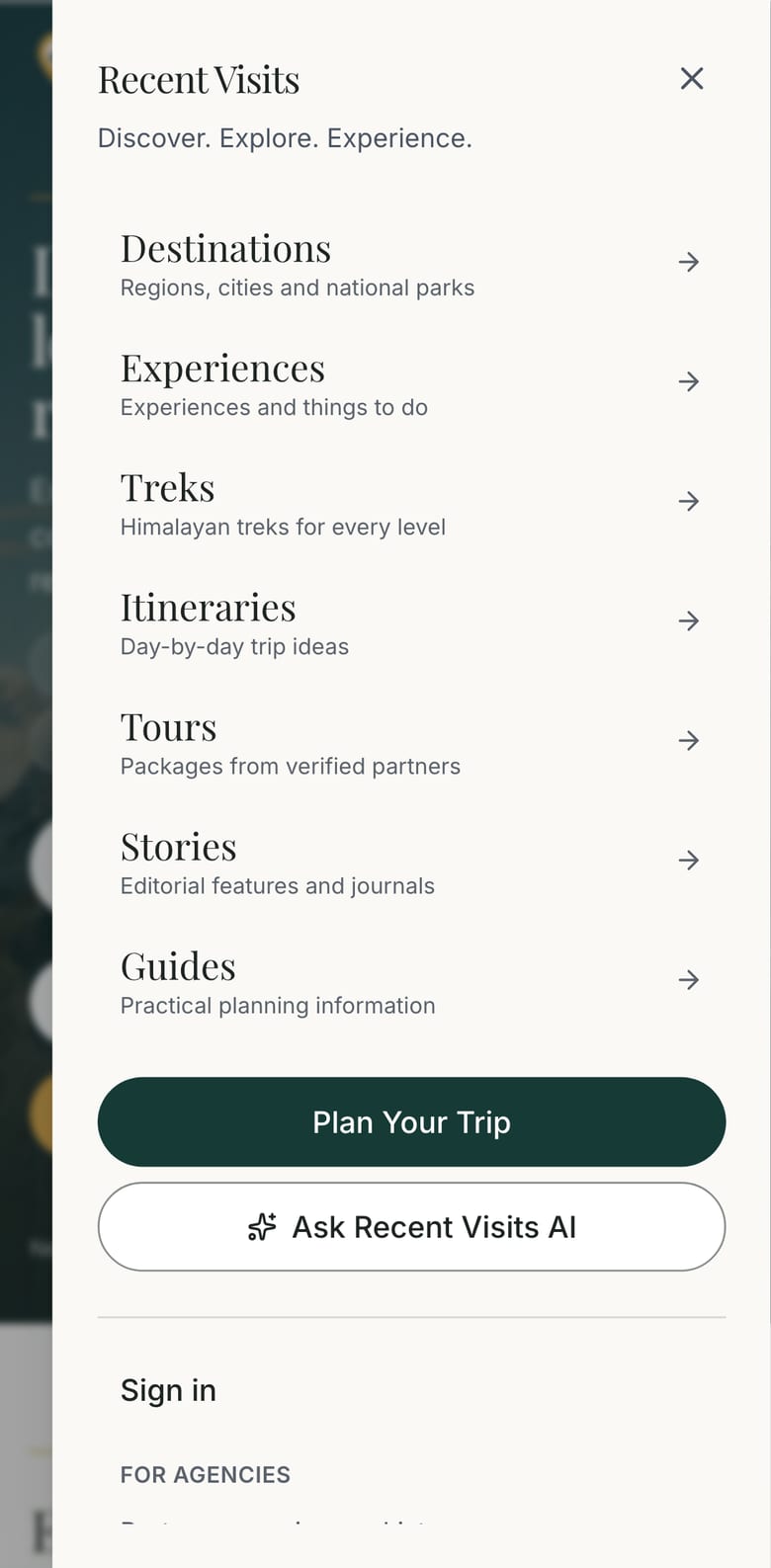
- The seven section links, each with a one-line description.
- A Plan Your Trip button and an Ask Recent Visits AI button (opens the assistant).
- Partner portal (agency team members only).
- Sign in, or My trips when signed in. If you have agency invitations the entry also shows an Invitation or N invitations tag.
- For agencies: Partner agencies, List your agency and Partner portal (hidden for agency team members, who already have the link above).
- Company links: About, Contact, How we make money, Privacy and Terms.
| Menu item | What you find there |
|---|---|
| Destinations | Guides to places such as Kathmandu and Pokhara, each with things to see, food, where to stay, how to get there and FAQs. |
| Experiences | Activities such as paragliding or jungle safari (route /things-to-do). |
| Treks | Trek guides with altitude, difficulty, permits and a day-by-day outline. |
| Itineraries | Day-by-day trip plans written by the Recent Visits team. They have no prices. |
| Tours | Tours offered by partner agencies, with an indicative "from" price. |
| Stories | Editorial articles together with stories written by travellers. |
| Guides | Practical guides, for example on visas and permits. |
The assistant is not a header item. Open it from Plan Your Trip (the page has an Ask Recent Visits AI button), from the drawer, from the footer ("Recent Visits AI"), from the homepage, or go straight to /ai.
The footer#
The footer is the same on every page and has six groups: Discover (Destinations, Treks, Experiences, Stories, Traveller stories), Plan (Recent Visits AI, Guides, Itineraries, Tours, Plan your trip), For travellers (Share your story, Story guidelines, Contributor terms, Photo licence), For agencies (Partner agencies, List your agency, Partner portal), Company (About, Contact, How we make money, Privacy, Terms) and Help & documentation (Help centre, Traveller guide, Agency guide, SDK & developer guide, Frequently asked questions, Contact & support). A line at the very bottom explains that partner agencies pay to be listed, that Featured agencies are labelled and that editorial pages may show ads, with a link to How we make money.
The homepage#
The homepage is built from these sections, top to bottom. Sections with nothing to show (for example no featured treks yet) are left out.
| Section | What it shows | Controls |
|---|---|---|
| Hero | "Discover places, local tours and real travel stories." with a photo of Nepal and three shortcuts (Destinations, Tours from local agencies, Travellers' stories). | Explore Nepal opens /nepal; Ask Recent Visits AI opens the assistant. |
| Start exploring | Four tiles: Destinations, Trekking, Things to do, Travel guides. | Select a tile. |
| Popular destinations | Up to five featured destinations. | All destinations. |
| Tours from local partner agencies | Up to three tours, with the partner disclosure line. | All tours, Partner agencies. If there are no tours yet you see "Tours from local agencies are on their way" with Browse itineraries and Run an agency? List it. |
| Stories from travellers and our editors | Up to six stories, newest first, each labelled editorial or traveller; a current Editor's pick leads. | All stories; Share your story when there are none yet. |
| Things to do, Walk into the Himalaya | Featured experiences and treks. | All experiences, All treks. |
| "From first idea to quotes from local agencies." | Four steps: Discover, Ask the assistant, Start from an itinerary, Compare quotes. | All itineraries and a link per step. |
| Recent Visits AI | A short pitch and example questions. | Open the assistant, or select a sample question to start with it. |
| Beyond the well-trodden trails, The practical side | Hidden gem destinations and featured travel guides. | All guides. |
| Stories and guides, a few times a month. | The newsletter form. | See below. |
| Closing banner | Links to Plan Your Trip and the assistant. | Select a button. |
Newsletter sign-up#
| Field or item | Type | Required? | Explanation | How to use it |
|---|---|---|---|---|
Email address (placeholder you@example.com) | Email box | Yes | The address that receives the newsletter. The label is hidden but read by screen readers. | Type your address and choose Subscribe. |
| Subscribe | Button | - | Adds the address to the list. On success the form is replaced by "You are on the list. Welcome aboard." | Select once. |
| Validation | Message | - | A wrong address shows "Enter a valid email address." under the box. | Fix the address and try again. |
Search#
Select the search icon and type at least two letters. Search covers destinations, treks, activities, guides, stories, traveller stories, agencies and tours (up to 30 results). Each result is labelled with its type. There are no filters on the search page; use the section pages to narrow things down. The full explanation is in Browse destinations, tours and search.
Destinations and itineraries#
A destination page (for example /nepal/pokhara) has a section menu that only lists the sections that exist for that place: Overview, Why visit, What to see, Food, Where to stay, Getting there, Good to know and FAQs, followed by photos and links to related things to do, itineraries and treks. Find tours shows tours that cover that place.
An itinerary is a day-by-day plan with tips, photos and a map. It is general guidance written by Recent Visits, not an agency offer. At the bottom, Offered as a tour by partner agencies lists agencies running a similar trip, and the page lets you request quotes for the itinerary from up to three agencies at once.
Time-sensitive guides (visas, permits, fees) show their source and the date they were last checked. Always confirm requirements with the official source before you travel. Every section page, filter and button is described in Browse destinations, tours and search.
Tours and agencies#
On Tours you can filter by destination, travel style (culture, nature, adventure, wildlife and more) and length (up to 7 days, 8 to 14 days, 15 days or more). Prices are indicative "from" prices supplied by the agency.
On Partner agencies (footer, For agencies) you can search agencies by name, filter by where they operate, and sort by name or by traveller rating. An agency page shows its tours, a Verified partner badge where staff have checked it, traveller reviews and a contact form. Details are in Agencies, ratings and writing a review.
Verified means Recent Visits staff checked the agency's identity and licence. It is not a guarantee about any particular trip.
Recommendations are not the same as agency offers#
- Guides, treks and itineraries are written by Recent Visits.
- Tours are written and published by the agencies themselves. Agencies pay a flat fee to be listed, so every tour on the site comes from a paying partner. A tour marked Featured is one whose agency paid for placement; it always carries that label. Paying never lets a tour that does not fit your trip into the results. Read How we make money for the full explanation.
- Demo or beta listings are marked Demo or Demo partner.
Plan Your Trip#
Plan Your Trip (/plan-your-trip) is a short guide with four numbered cards, each with a link: 1. Pick your regions (Browse destinations), 2. Choose a season (Read travel guides), 3. Decide on trekking (Compare treks) and 4. Match with a partner (See tours). The page also has an Ask Recent Visits AI button for people who would rather describe their trip and let the assistant do the matching.
Cookies and analytics#
The first time you visit, a small box titled "Help us improve Recent Visits?" asks whether to allow first-party analytics (no third-party trackers; only a random session id is stored). Choose Allow analytics or No thanks; your choice is remembered in your browser and the box does not return. The box does not block the page. See the privacy policy.
Getting help#
The footer of every page has a Help & documentation group. The help centre (/help) has a search box (type at least two letters, up to 80), cards for the four guides, and a language switch (English or Nepali). Search results list matching articles with the words highlighted; if nothing matches you are offered the guides and the contact page.
How to get started#
- Open the homepage and select Explore Nepal, or open the menu and choose Destinations.
- Open a destination you like and read its overview, things to see and tips.
- Select Find tours, or open Itineraries to see a day-by-day plan.
- Open the assistant with Ask Recent Visits AI to tailor the plan to your dates.
- On a tour, itinerary or agency page, fill in the quote form to ask an agency for a quote.
Troubleshooting#
| Problem | What to try |
|---|---|
| I cannot see the section links in the header. | They show from 1,280 px wide. Use the menu button to open the drawer. |
| I cannot find Sign in on my phone. | It is in the menu drawer; the header shows it from 768 px wide. |
| Search says "Type at least 2 characters." | Search needs two letters or more. |
| A page I opened says it was not found. | The page may have moved or been unpublished; use the menu or search. |
Next steps#
- Browse destinations, tours and search for every section page explained.
- Ask the AI assistant to build a plan around your dates and interests.
- Request a quote from an agency.
- Create an account to keep your trips and conversations.
- Share your own story or write a review.
- Read the FAQ.
Last checked against the product:
Related articles
- Browse destinations, tours and search · Every public section page explained: destinations, itineraries, tours, treks, things to do, travel guides and search. What each control does, how filters work and how the quote buttons behave.
- The AI travel assistant · How to plan a trip with Recent Visits AI, every control on the assistant screen, what it uses to answer, how the sign-in gate and limits work, and how to check what it tells you.
- Quotes and agency enquiries · How to ask a travel agency for a quote on Recent Visits, what each form field means, what happens next, and how to read, compare, accept or decline quotes. A quote request is not a booking.
- Accounts, sign-in and profile · Create an account, sign in with a password or an email link, reset a password, use your account page, manage your author profile and understand what you can do without an account.
- Agencies, ratings and writing a review · How to find a partner agency, read its page and traveller reviews, report a review, and write, edit, verify or withdraw your own honest review. Explains ratings, moderation and what each status means.
- Stories, experiences and reviews · Read traveller stories, write and publish your own with the four-step editor, add photos, offer photos to Recent Visits, track earnings, and learn how review and moderation work.
Still stuck? Contact us and tell us what you tried.