On this page
A lead is a traveller's quote request to your agency. Find them under Work → Leads (/partner/leads); a badge in the sidebar shows how many are new. This is the heart of how Recent Visits sends you travellers.
Both owners and managers can handle leads.
Where leads come from#
Each lead shows where it came from ("via …"): a tour page (shown as "offer page"), your agency page ("partner page"), the AI assistant ("ai"), the tours list ("tours index"), an itinerary request (the traveller may have sent it to up to three agencies), or your website widget. You also get an email, "New quote request … from <name>", at your contact email and to every team member.
The Leads list#
Open Work → Leads. The list shows your most recent 100 requests, one row each, with the most urgent first: requests waiting for your reply, then new ones, then quoted ones, then won ones. The page opens on Needs reply, or on New when nothing is waiting, or on All. When there are none, the page says "No leads yet. Published tours with a quote form bring requests here."
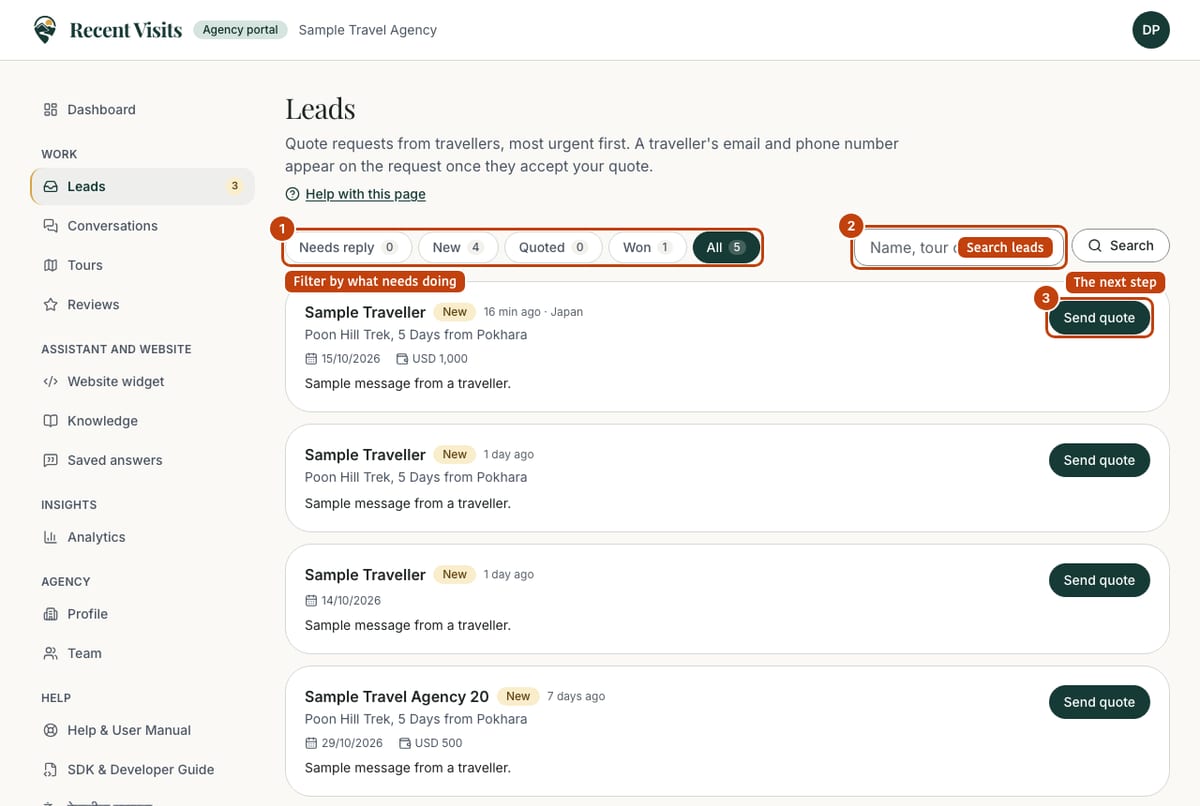
What each row shows#
| Item | Type | Explanation |
|---|---|---|
| Tabs Needs reply, New, Quoted, Won, All | Links | Each tab shows a count. Needs reply: the traveller wrote last. New: no quote sent yet. Quoted: a quote is out and nothing waits for you. Won: a quote was accepted, or you set the lead to Converted. All: every request, including Closed and Spam. The tab is kept in the address (?status=). |
| Search leads | Search box | Searches the name, tour, message and country. Choose Search. When nothing matches, the page says "No leads match your search" and offers Show all leads. |
| Traveller name | Link | The name the traveller entered. Opens the request page. |
| Badge, time and country | Badge and text | The bucket (Needs reply, New, Quoted, Won, Closed or Spam), how long ago the request arrived and the traveller's country. |
| Tour | Text | The tour the request was about, when there was one. |
| Trip details | Details | Start date, number of days, number of travellers and budget with currency. Only given items are shown. |
| The message | Text | The first two lines of what the traveller wrote. Open the request to read all of it. |
| "<name> wrote …" box | Text | Only on Needs reply rows: the traveller's latest message and when it arrived. |
| Quote line | Text | Once you have sent a quote: "Quote sent · $1,250 per person · awaiting the traveller", or Quote accepted, declined, withdrawn or expired. Missing until you send a quote. |
| Next-step button | Button | Send quote (new requests), Reply (traveller waiting), View contact (won) or Open (quoted and closed). It opens the request page at the right part. |
Statuses (for you)#
Use Status under Status and notes on the request page to keep track. Travellers do not see these.
| Status | Use it for |
|---|---|
| New | Not handled yet. |
| Contacted | Set automatically when you send a quote on a request that is still New. Sending only a message does not change the status. |
| Qualified | Set automatically when the traveller accepts a quote (if the request was New or Contacted). |
| Converted | Your own marker that the trip was agreed. It also counts in the dashboard funnel. |
| Closed | Finished without a trip. |
| Spam | Not a real request. |
You can also keep private notes on a lead; only your team sees them. Saving with an empty notes box keeps the old notes: to replace a note, type new text.
Contact details and privacy#
Until the traveller accepts one of your quotes, you see their name, trip details and message but not their email or phone number. The request page says "Email and phone appear here once <name> accepts your quote. Until then, send a quote or a message on Recent Visits." After they accept, the email and phone appear on the request. Do not ask travellers to send their contact details in a message before then, and do not work around this.
Agencies never see a traveller's AI conversation. If a traveller later deletes their account, their quote requests are anonymised for you: the name, email, phone and message are removed, while trip details, status and your own notes stay. See the privacy policy.
The request page#
Choose a row's name or its next-step button (/partner/leads/<id>). The heading reads "Request from <name>" with the tour, how long ago it arrived and "via Recent Visits AI" for assistant requests. ← All leads goes back.
| Part | Contents |
|---|---|
| The request | The traveller's contact (locked or released), trip details with icons (from date, days, travellers, budget) and the message. |
| Send a quote | The quote form (next section). Once you have sent a quote it moves below Quotes sent, behind Send another quote. |
| Quotes sent | One card per quote you sent, newest first: the status badge (Awaiting the traveller, Accepted, Declined, Withdrawn or Expired), price and basis, travellers, valid-until date with the days left (flagged when 3 or fewer), included and not included (the first four, then "+N more"), accommodation, transport, deposit and cancellation, your message. |
| Messages | The thread, oldest first, then the message box. An empty thread says "No messages yet." |
| Status and notes | Your own Status and Private notes (2,000 characters). Choose Save. Only your team sees them. |
Send a quote#
On the request page, fill in the Send a quote form. Some boxes are filled in for you: Travellers and Currency from the request, and Included from your tour's inclusions. Change anything.
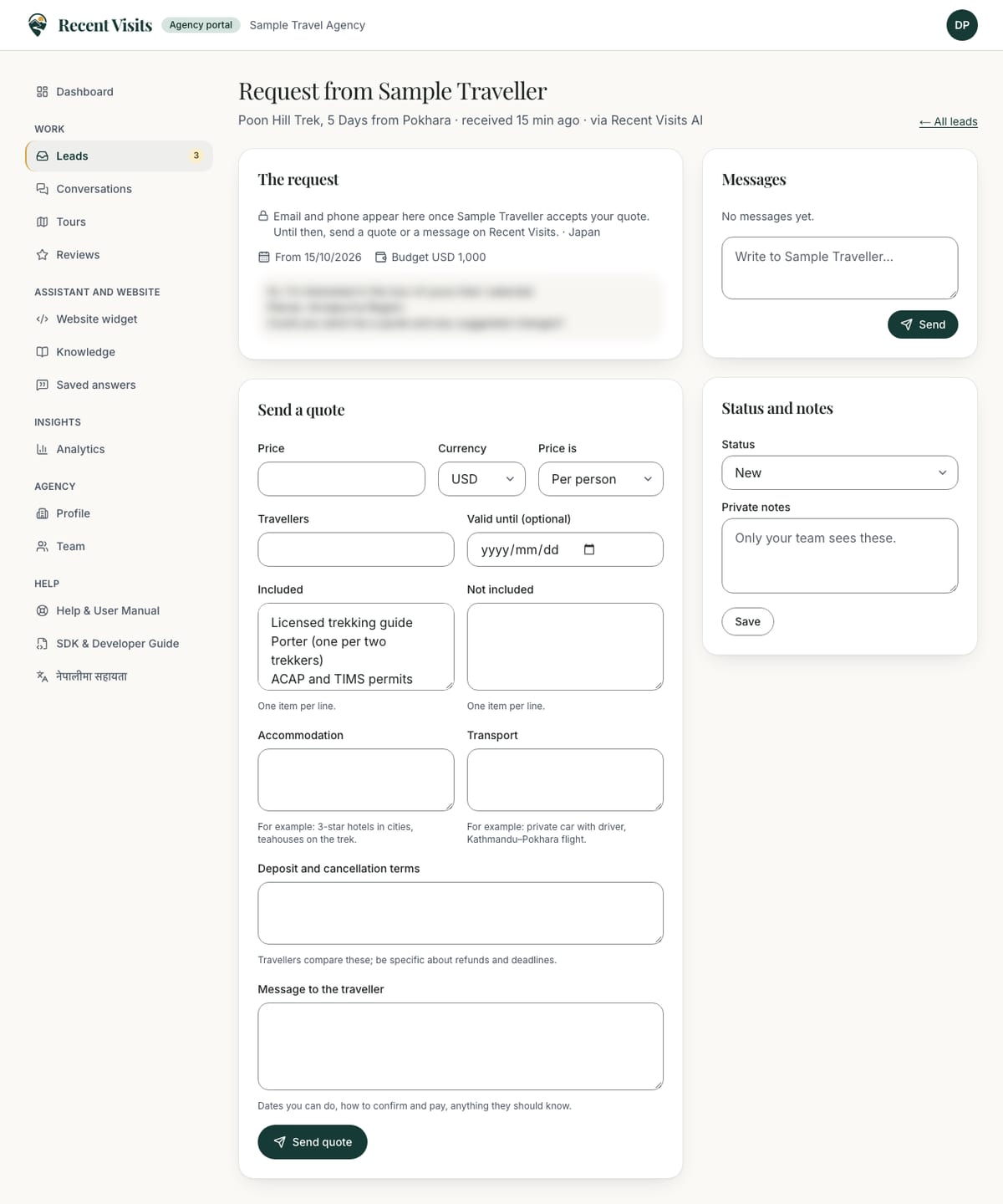
| Field or item | Type | Required? | Explanation | How to use it |
|---|---|---|---|---|
| Price | Number | Yes | A number of at least 1 (the box takes whole numbers), up to 10,000,000. Error: "Enter the price". | The price in the currency chosen next to it. |
| Currency | Drop-down | No | USD, EUR, GBP, AUD, INR or NPR. Starts as the request's currency, or USD. | Choose the currency you will invoice in. |
| Price is | Drop-down | No | Per person (default) or For the group. | Say whether the price is for one traveller or for everyone. |
| Travellers | Number | No | 1 to 50. Pre-filled from the request. | The number of travellers the price covers. |
| Valid until (optional) | Date | No | Cannot be in the past. Errors: "Use a valid date", "The date has passed". | A realistic date after which you will not honour the quote. |
| Included | Text area | No | Hint "One item per line." Up to 20 lines, 160 characters each; bullet marks at the start of a line are removed. Errors: "Up to 20 lines", "Keep each line under 160 characters". | One inclusion per line. |
| Not included | Text area | No | The same rules. | One exclusion per line. |
| Accommodation | Text area | No | Up to 500 characters. Hint: "For example: 3-star hotels in cities, teahouses on the trek." Error: "Keep it under 500 characters". | Describe where travellers stay. |
| Transport | Text area | No | Up to 500 characters. Hint: "For example: private car with driver, Kathmandu–Pokhara flight." | Describe how they travel. |
| Deposit and cancellation terms | Text area | No | Up to 1,000 characters. Hint: "Travellers compare these; be specific about refunds and deadlines." Error: "Keep it under 1,000 characters". | Be specific about deposits, refunds and deadlines. |
| Message to the traveller | Text area | Yes | 10 to 4,000 characters. Hint: "Dates you can do, how to confirm and pay, anything they should know." Error: "Add a short message for the traveller". | Answer what they asked and say how to go ahead. |
| Send quote | Button | n/a | Sends the quote at once (no confirmation). Success: "Quote sent. The traveller gets an email and sees it on Recent Visits." The request moves from New to Contacted. | Check the price and terms first; a quote is your commitment. |
If a field is wrong, the form stays filled in and each message appears under its field. A general message such as "You are doing that too often. Please wait a moment." appears above the form when you hit the limit of 10 quotes per request per day.
A quote is your commitment to the traveller, so be accurate and keep the validity date realistic. A quote cannot be edited or withdrawn in the portal; send a new one if something changes.
Messages#
Use the Messages box on the request page to ask questions or follow up.
| Field or item | Type | Required? | Explanation | How to use it |
|---|---|---|---|---|
| Message box (placeholder "Write to <name>…") | Text area | Yes | 1 to 4,000 characters. Plain text only. Empty: "Write a message first." | Write one clear message. |
| Send | Button | n/a | Sends the message and clears the box. The traveller is emailed ("New message from …"). Up to 40 messages per side per request per day. | Combine points into one message. |
When the traveller answers#
You are emailed when a traveller accepts or declines a quote, and the thread shows it. On acceptance their email and phone number are released to you. Contact them, confirm dates and payment terms, and arrange the booking with them directly.
How to answer a request#
- Open Work → Leads (or press Reply on the dashboard).
- Choose the request's next-step button (Send quote or Reply) and read the request.
- Fill in the quote and choose Send quote, or write a message if you need more information first.
- Set the status as you go and keep private notes under Status and notes on the request page.
- When the traveller accepts, use the released contact details to confirm the trip.
Expected result#
The traveller receives an email and sees your quote on Recent Visits. Your Median first reply on the dashboard uses the time of your first quote or message.
Tips#
- Reply promptly: the leads list and the dashboard show your time to first reply.
- Answer what they asked and say clearly what is and is not included.
- If you cannot take the trip, say so and set the lead to Closed.
See Best practices and Troubleshooting.
Last checked against the product:
Related articles
- Conversations, knowledge and saved answers · How your agency's website assistant is fed with your own documents and saved answers, and how to read, take over, hand back and close a visitor's chat; every field, button, badge and message on these three pages.
- Best practices · Practical recommendations for profiles, tours, prices, photos, replies and reviews. Recommendations are advice, not platform rules.
- Quotes and agency enquiries · How to ask a travel agency for a quote on Recent Visits, what each form field means, what happens next, and how to read, compare, accept or decline quotes. A quote request is not a booking.
- The agency dashboard · A tour of the agency portal dashboard: the setup checklist, the Needs attention list, key figures, the funnel, the daily chart and the Top tours table, with what every item means and where it takes you.
Still stuck? Contact us and tell us what you tried.