On this page
Recent Visits AI helps you plan a trip to Nepal: places to visit, treks, a day-by-day outline and tours from partner agencies that fit your trip. Anyone can use it; without an account you get two written replies before you are asked to sign in (see Limits and the sign-in gate).
Open the assistant#
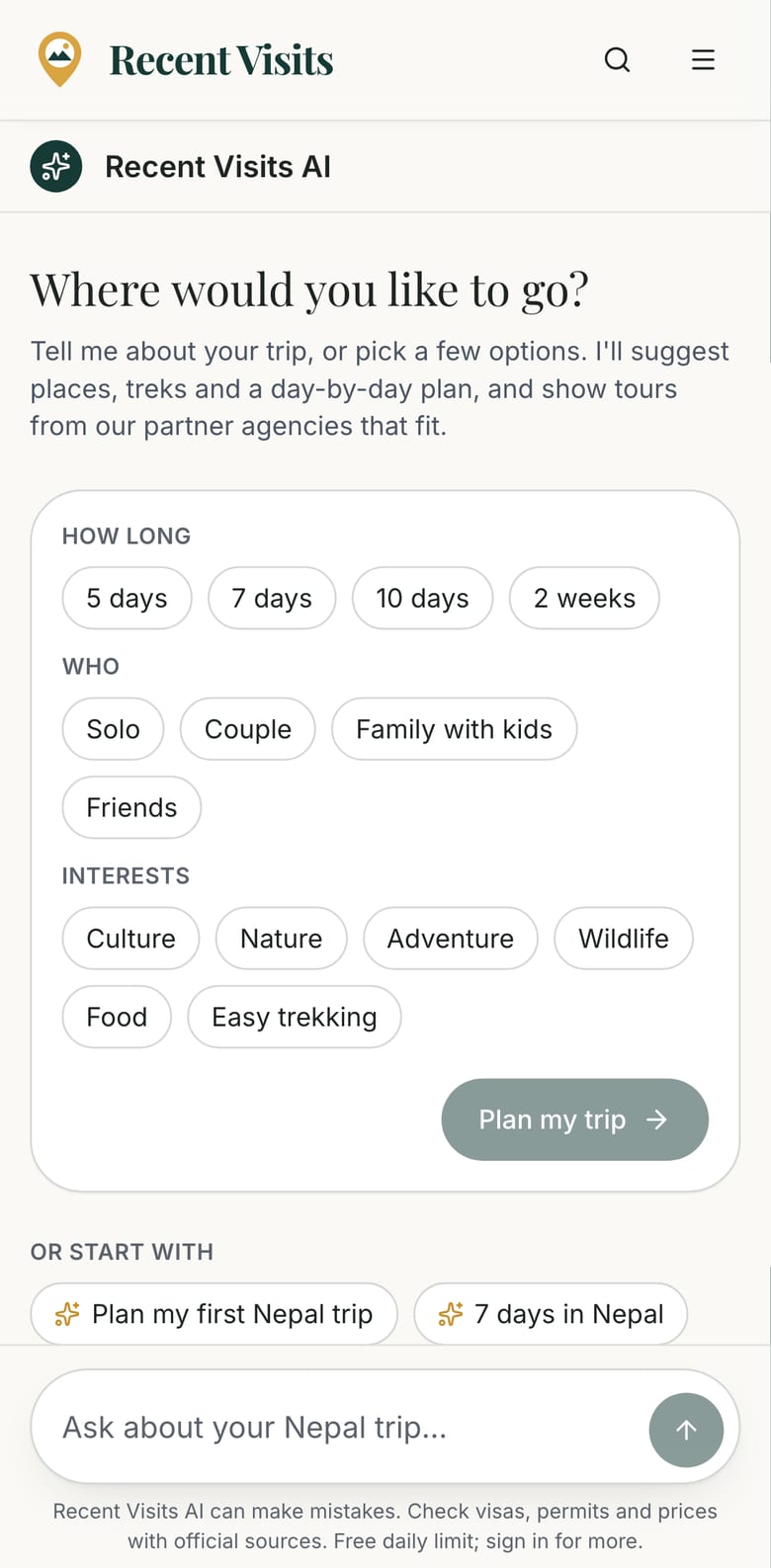
Go to /ai, or use Plan Your Trip, the menu drawer's Ask Recent Visits AI button, the homepage or the footer link "Recent Visits AI". Some pages open it with that page already chosen as the subject: a destination, a trek, a tour or a traveller story (the Planning time in X?, Is this trek right for you?, Not sure it fits? and Plan a similar trip buttons). An itinerary page opens it with the question "Help me adapt the ... itinerary to my trip." already sent.
Web address options#
These are used by links inside the site; you rarely type them yourself.
| Field or item | Type | Required? | Explanation | How to use it |
|---|---|---|---|---|
prompt | Address option | No | A question sent automatically once when the page opens (the first 500 characters are used). | Used by the "Ask" buttons on other pages. |
context | Address option | No | destination:, trek:, tour: or story: followed by a page name. Makes that page the subject. | Used by the "Ask" buttons; remove it with Clear (below). |
c | Address option | No | Reopens one of your saved conversations. | Used by History, the sign-in link and quote pages. |
The screen#
| Field or item | Type | Required? | Explanation | How to use it |
|---|---|---|---|---|
| Title bar | Read-only | No | The assistant's mark and the name "Recent Visits AI". | - |
| History | Button | No | Signed-in travellers with at least one saved conversation only. Opens a panel "Your conversations" ("Pick up where you left off. Saved trips are in My trips.") listing your 20 most recent ones, newest first, with dates, and a Saved trips link to My trips. | Select a conversation to reopen it. |
| Your trip | Button | No | Appears on screens narrower than 1,024 px once the conversation has places, a plan, treks or tours. Opens the trip board as a drawer. | Select it to see the board. |
| New chat | Button | No | Appears once the conversation has messages. Starts an empty conversation (the old one stays in History if you are signed in). | Select it to start again. |
| "Talking about (page)" bar with Clear | Chip | No | Shown when you arrived from a destination, trek, tour or story page. The name links to the page (new tab). | Select Clear to stop the assistant treating that page as the subject. |
| Notice about "mock mode" | Banner | No | Shown only if the site is running without its AI provider: answers are then placeholders, but limits and history still behave normally. | If you see it, expect placeholder answers and contact us if it persists. |
| Conversation area | Messages | - | Your messages on the right, the assistant's on the left. Scrolls inside the page; a round arrow button (Jump to the latest message) appears when you scroll up. | Scroll freely; new text follows only if you were already at the bottom. |
| Message box | Text area | Yes, to send | Label "Message the assistant", placeholder "Ask about your Nepal trip...". Up to 4,000 characters; it grows as you type. Enter sends, Shift+Enter starts a new line. | Type and press Enter or the Send arrow. |
| Send | Button | - | Disabled while the box is empty. | Select it to send. |
| Stop writing | Button | - | Replaces Send while the assistant is writing. | Select it, or press Escape, to stop a reply. |
| Keyboard shortcut | Key | - | Pressing / anywhere outside a text box moves you to the message box. | Press /. |
| Footnote | Text | - | "Recent Visits AI can make mistakes. Check visas, permits and prices with official sources." Visitors who are not signed in also see "Free daily limit; sign in for more." | Read. |
Start a conversation#
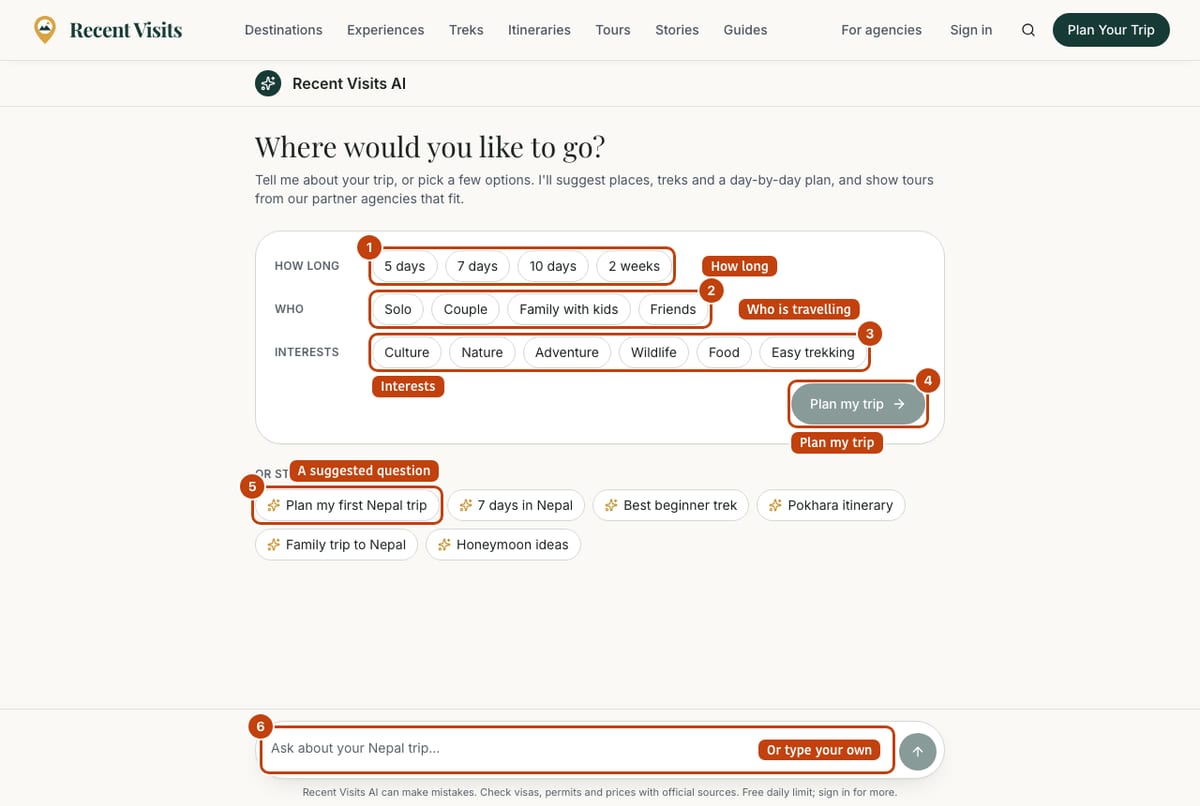
On an empty screen the heading asks "Where would you like to go?" (or "Ask about (page name)" when you came from a page, with that page's own starter questions as buttons).
Quick trip setup#
| Field or item | Type | Required? | Explanation | How to use it |
|---|---|---|---|---|
| How long | Choice chips | No | 5 days, 7 days, 10 days, 2 weeks. Choose one; select it again to clear it. | Pick the length of your trip. |
| Who | Choice chips | No | Solo, Couple, Family with kids, Friends. Choose one. | Pick who is travelling. |
| Interests | Choice chips | No | Culture, Nature, Adventure, Wildlife, Food, Easy trekking. Choose as many as you like. | Pick what you enjoy. |
| Plan my trip | Button | - | Disabled until you choose at least one chip. Sends one complete first message built from your choices, for example "Plan a 7-day trip to Nepal as a couple. We're interested in culture and temples and easy trekking." | Select it. |
Suggested questions#
Under Or start with (or Or plan something new when a page is chosen) are six buttons that send a ready-made question: "Plan my first Nepal trip", "7 days in Nepal", "Best beginner trek", "Pokhara itinerary", "Family trip to Nepal", "Honeymoon ideas".
Or type your own. Good questions are specific:
- "We have 7 days in March, two adults, no hard trekking. What would you suggest?"
- "Is Poon Hill suitable for a first-time trekker?"
- "Compare Pokhara and Chitwan for a family."
While the assistant answers#
- Three bouncing dots show it is working.
- A short line such as "Searching destinations", "Comparing treks" or "Matching partner tours" says what it is looking at; it shows what it consulted, never its reasoning.
- A row of Sources appears above the answer when it drew on guide pages; each is a link that opens in a new tab.
- On phones, a Suggested outline (Day 1, Day 2 ...) is shown under the answer when it drafted one; on wide screens it is on the trip board.
- Under the answer, Suggested follow-ups are small buttons that send the next question for you.
Under each answer#
| Field or item | Type | Required? | Explanation | How to use it |
|---|---|---|---|---|
| Instant answer label | Label | - | The reply came from an answer staff wrote or a fixed rule, without using the AI model. It does not count towards your free replies. | Read as normal. |
| Copy answer | Icon button | No | Copies the text. Shows "Answer copied", or "Copy is blocked in this browser" if the browser refuses. | Select it. |
| Ask again | Icon button | No | Only on the latest reply. Writes the answer again. | Select it if the answer missed the point. |
| Helpful / Not helpful | Icon buttons | No | Send a thumbs up or down; select the same one again to take it back. Disabled until the reply has been saved. Messages: "Thanks for the feedback", "Feedback removed", "Could not save feedback". | Use them to tell us whether an answer was useful. |
What the answers are based on#
The assistant answers from the material on Recent Visits: destination, trek and activity guides, travel guides, itineraries, tours published by partner agencies and published agency reviews. When a reply draws on guide pages, Sources appear above it; links open in a new tab.
- On a traveller story page the assistant can answer questions about that story. Traveller stories are the author's own experience and are not fact-checked by Recent Visits.
- Agency reviews, when mentioned, are presented as traveller opinion, never as a ranking.
If the assistant does not have information it should say so. It must not invent prices, availability, agency details or visa and permit rules; if you see it do that, please tell us.
Tours in the answers#
When it makes sense, the assistant shows Tours from our partner agencies that fit your trip (length, places, style, group). A matching tour is chosen by Recent Visits' fit rules, not by the AI model, and the panel's heading is the disclosure that these tours come from agencies that pay to be listed.
| Field or item | Type | Required? | Explanation | How to use it |
|---|---|---|---|---|
| Panel heading | Read-only | - | Tours from our partner agencies, or Closest tours from our partner agencies when nothing matched your length exactly ("None of exactly your length yet"). Otherwise "N that fit your trip". | Read. |
| How we rank | Link | No | Opens the explanation in a new tab. | Select it. |
| Badge | Label | - | Recommended (a fitting tour), Closest match, or You were reading this (the tour page you came from). A Featured tag appears only on a tour whose agency paid for placement; Demo marks example listings. | Read the reasons below the title. |
| Card body | Read-only | - | The agency (with a verified mark), the places, up to three reasons (for example "7 days, exactly your trip length"), length and a "from" price. | Compare options. |
| View tour | Link button | No | Opens the tour page in a new tab so the chat stays put. | Select it. |
| Request quote | Button | No | Opens the Request a quote side panel with the form filled in from your trip. See Quotes. | Check the text, tick the consent box and send. |
| Note instead of cards | Text | - | When no tour fits, a short note explains why, with a Browse all tours link. | Open the tours page or change your plan. |
Once an agency has replied to a request made from this conversation, a Quotes from agencies section lists its quote cards with Answer or ask a question (or Open the conversation), which opens the request page.
The trip board#
On a screen at least 1,024 px wide a Your trip panel builds up beside the chat; on a phone it opens from the Your trip button as a drawer. It only appears once the conversation has something to show.
| Field or item | Type | Required? | Explanation | How to use it |
|---|---|---|---|---|
| Trip so far chips | Read-only | - | What the assistant understood: length, group, interests and so on. Before that it says "Tell the assistant how long you have and who is travelling to build your trip here." | Check they are right; correct them in the chat if not. |
| Adjust the trip buttons | Buttons | No | Up to four one-tap changes that send a message for you, for example "Make it 10 days", "Shorten it to 5 days", "Easier treks only", "Add Pokhara" or "What will it cost?". Which ones appear depends on what the assistant already knows. | Select one to refine the plan. |
| Save & share trip | Button | No | Disabled until the conversation exists. Saves the places, treks, tours and plan (never free text) and shows a link. See below. | Select it when you are happy with the plan. |
| Places | List | - | Destinations discussed, linking to their guides (new tab). | Select one to read more. |
| Suggested outline | List | - | Day 1, Day 2 ... with the place and focus. If it follows one of our itineraries, a link invites you to Request quotes from up to three local agencies. | Use the link to ask agencies about the whole plan. |
| Treks | List | - | Treks discussed, with days, difficulty and altitude. | Select one. |
| Tours from our partner agencies (or Closest partner tours) | List | - | Each tour with agency, length, "from" price and tags, Compare and Request quote. | See below. |
| Compare check box | Check box | No | Appears when there is more than one tour. You can tick up to four (the oldest ticks drop off). | Tick two to four tours. |
| Compare button | Button | - | Reads Tick two tours to compare (disabled) until two are ticked, then Compare N tours. Opens a window titled Compare tours. | Select it. |
| Compare tours window | Dialog | - | A table with rows Agency, Length, From, Difficulty, Places, Includes (first six) and Fits your trip, plus Request quote under each tour. Prices are indicative "from" prices; it shows facts the agencies published, no scores. | Close it with Escape or the close button, or request a quote from a column. |
Save and share a trip#
- On the board choose Save & share trip.
- When it succeeds the board says "Trip saved. Anyone with the link can view it." with a Trip link box, Copy link (reads Copied), Share (only on devices that offer sharing) and Open (new tab). Update with the latest plan saves the changes again under the same link.
- If it fails you see "Could not save the trip. Try again in a moment."
The link opens a read-only trip page (/trips/...) that is not listed in search engines. It shows the title, summary chips, the last-updated date, Places, Suggested outline, Treks and Tours from our partner agencies (with a How we rank link), plus Continue planning (opens the assistant with a question built from the trip) and Browse all tours. The page is rebuilt from published content each time it is opened, so tours that have since been removed disappear. Signed-in travellers find saved trips under Saved trips on My trips. You can save up to 60 times a day.
Limits and the sign-in gate#
| Who | Limit |
|---|---|
| Visitors who are not signed in | 2 written replies, then the sign-in gate. Instant answers do not count. A visitor is also limited to 20 messages a day from one browser, 60 a day from one network address, and 6 free replies a day from one network address. |
| Signed-in travellers | 150 messages a day. |
When you reach a daily limit you see "You have reached today's limit for the assistant. Please try again tomorrow or sign in for a higher limit." and can try again the next day.
The sign-in gate#
After the free replies a card titled Create a free account to keep planning replaces the answer. Your conversation is kept; the account lets you come back to your trips, and agencies can send their quotes straight into the conversation.
| Field or item | Type | Required? | Explanation | How to use it |
|---|---|---|---|---|
| Continue with Google | Button | No | Shown only when the site has switched Google sign-in on. | Select it to sign in with Google. |
Email (placeholder you@example.com) | Email box | Yes | The address that receives the sign-in link. | Type it and choose Email me a sign-in link. |
| Email me a sign-in link | Button | - | Sends a link and a 6-digit code. The card is then replaced by the "check your email" panel (see Accounts, sign-in and profile). | Open the email and press its button, or type the code. |
| Sign in / create an account links | Links | No | For people who prefer a password. By continuing you agree to the privacy policy. | Select one. |
The message you had just written is kept in your browser and is waiting in the message box when you return signed in. The conversation, and any trip you saved before signing in, moves to your account.
If something goes wrong#
- An error banner shows the message and offers Retry, which writes the answer again.
- Do not enter passport numbers, payment details or other sensitive personal data.
- A reply that looks like a placeholder usually means the assistant is running in mock mode; try again later.
How to plan a trip, step by step#
- Open /ai.
- Pick a length, who is travelling and your interests, then choose Plan my trip (or type your own question).
- Read the answer and its Sources.
- Use the Adjust the trip buttons or ask follow-up questions.
- Tick two or more tours and Compare, then Request quote on the ones you like.
- Choose Save & share trip to keep a link.
Related pages#
Last checked against the product:
Related articles
- Quotes and agency enquiries · How to ask a travel agency for a quote on Recent Visits, what each form field means, what happens next, and how to read, compare, accept or decline quotes. A quote request is not a booking.
- Accounts, sign-in and profile · Create an account, sign in with a password or an email link, reset a password, use your account page, manage your author profile and understand what you can do without an account.
- Browse destinations, tours and search · Every public section page explained: destinations, itineraries, tours, treks, things to do, travel guides and search. What each control does, how filters work and how the quote buttons behave.
- Frequently asked questions · Short answers about booking, quotes, the AI assistant, accounts, agencies, reviews and the website widget.
Still stuck? Contact us and tell us what you tried.